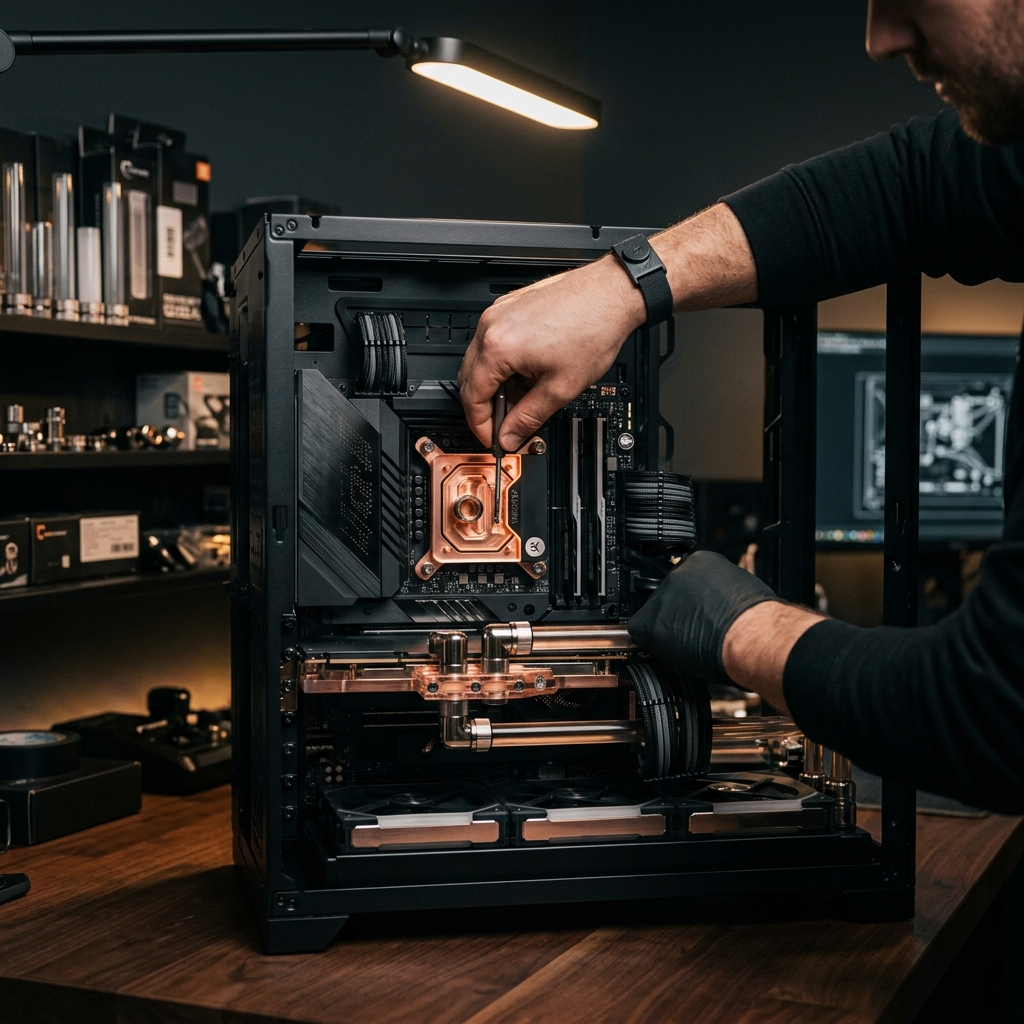
The Savvy Guide to Custom PC Maintenance & Airflow
Custom PCs represent a significant financial investment. To ensure your gaming PC, workstation, or simulator rig maintains its performance, active thermal maintenance is crucial.
This is the exact guide and maintenance checklist used by the engineers in our Sydney workshop.
---
Why Airflow Matters
Modern high-performance silicon (such as the AMD Ryzen 7 9800X3D or NVIDIA RTX 5080) features aggressive dynamic clock speeds. These chips boost as high and as long as thermal limits allow.
When dust builds up on the heatsink fins, thermal resistance increases. The processor will trigger **thermal throttling**, dropping clock speeds and reducing your in-game frame rates.
---
The Positive vs. Negative Pressure Rule
When designing your case airflow setup, you want **Positive Airflow Pressure**. This means you have more intake volume than exhaust volume.
- **Positive Pressure (Recommended)**: Air is forced out of every crack and seam in the chassis, preventing dust from slipping inside.
- **Negative Pressure**: Air is pulled into the chassis through un-filtered cracks, pulling ambient dust directly onto your premium components.
At Savvy Computers, we calibrate all custom builds with a positive pressure curve. We utilize high-quality magnetic dust filters on all intake fans (bottom and front) and leave the top/rear exhausts open.
---
Step-by-Step Maintenance Checklist (Every 6 Months)
Perform this basic maintenance checklist twice a year to keep your custom rig healthy:
1. Power Down and Unplug Always switch off the power supply unit (PSU) and unplug the mains cable before touching any internal components.
2. Move to a Well-Ventilated Area Take your system to an outdoor area or a garage. Cleaning dust inside a bedroom just cycles it back through your room's airflow.
3. Use Compressed Air (Never a Household Vacuum) PSUs and general household vacuums generate high electrostatic discharge (ESD) which can immediately fry delicate motherboard capacitors. Use a dedicated electric duster or cans of compressed air.
4. Lock Your Fan Blades When blowing air through your system fans, hold the fan blades in place with a finger. Allowing the air to spin the fans at high RPMs turns them into mini-generators, feeding voltage back into your motherboard headers and potentially damaging them.
5. Wipe Down Filters Remove all magnetic dust filters, wash them with cold water, dry them completely, and re-attach.
---
When to Repaste Your Thermal Compound
For high-end thermal pastes (such as Noctua NT-H2 or Thermal Grizzly Kryonaut) applied by Savvy Computers, we recommend repasting every **2 to 3 years**. If you notice your idle CPU temperatures creeping above 50°C or thermal throttling occurring under normal gaming loads, it's time for a service.
*Need a professional clean, repaste, or hardware upgrade in Sydney? Bring your PC into our boutique workshop for a full custom service.*